Free Holiday Gift

Just wishing everyone a safe and happy holiday season. As a special gift for all the editors who need to make holiday promos...

Here are 2 free Christmas tracks arranged by us for perfect 30 second spots or promos. Enjoy!

Free Download

UPDATE: Yes! They are royalty free like our products. Use for most anything, just can't sell with stock sites or templates etc. View License

As always our DVDs also make a great addition to any video collection so be sure to check them out. Especially Evolution for this holiday season.
Visit Products Page

POSTED:
17 years ago
Heads Up!

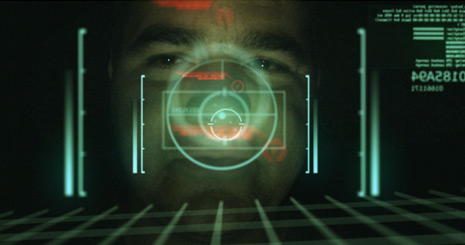
I've been planning a tutorial based on the heads up display (HUD) from the film Iron Man. After seeing the inspiring work by the Orphanage, I thought this idea could be useful in other forms as well.

Jet pilots, robots or even futuristic interfaces require visual screen information that looks cool and tells a story. Where would RoboCop be without his targeting system?

See Sample Video

POSTED:
17 years ago
3D Falloff

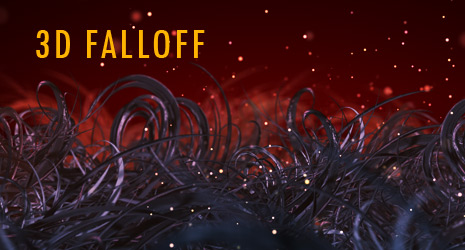
3D Falloff is the subject of this new tutorial/preset that will give 3D layers a new dimension in After Effects.

The Falloff we are referring to is specifically distance falloff. When a layer reaches a certain distance away from the camera, it begins to fade into the background the further away it gets. Many Video Games feature atmospheric effects that act as falloff for geometry that is far away and this occurs in real life too. For example ,underwater objects and sea creatures can fade into the darkness as they descend or a person can disappear into a snow storm only to emerge as the abominable snowman.

This new preset makes it easy to automatically calculate falloff based on a layers distance from the camera. There are many great settings like when to start and end the falloff as well as color and opacity settings.

In this video there are over 50 layers that react properly to the distance as the camera approaches. Keyframing this manually would take forever and if you change the camera the animation would have to be adjusted. More soon.

Watch Video

BTW, the Pro Scores promo was not rendered with this preset but it is a good example to illustrate this effect, the tutorial will include several techniques as well.

POSTED:
17 years ago
Working on a New Tutorial & Preset

Hey! Just wanted to let you know, I'm developing a new tutorial and preset that will be out this week. It's so cool, that it's getting it's own blog post.

It's not a specific effect but rather a tool and a technique that will give your work amazing depth (not DOF either). And it's free! Of course, if you want to support Video Copilot's ongoing mission to make cool stuff, head over to the products page and check out our great DVDs! I think there's a banner somewhere around here.

Be sure to check out our new tool Pro Scores while your at it, the audio demo is now online.

New Products

POSTED:
17 years ago
Useful Tips

I stumbled upon a recently published list of Tips for motion graphics folks by Computer Arts. There is tons of great advice I'm sure you will find useful. So I started thinking, without restating any of these tips (intentionally), I could make a top 10 list, maybe even 20. So here it is! -5 more.

1. Make Proxies of Elements

Designs can be complex, often times an element is used or reused that can be very heavy on rendering. For example, this circular element contains a heavy radial blur that renders very slow. Other parts of the design still require work and you should not have to waste extra time. So I created a full resolution proxy of the element I could output as well.

In the render settings, there is an option for the proxy use, to use none or current settings. Of course if you really need to change the design element, just disable the proxy and have at it. This is also a great idea for pre-comps and things that are somewhat "finished".

2. King of the Kaps lock

Have you ever noticed how fast you can move around in After Effects with the Caps Lock on? It's because rendering is disabled however, you can still do almost everything. In big compositions (even small ones) this can save time navigating, editing clips and even keyframin' without any tax. There is also the Live Update button but this way is much better. Practice using your pinky and toggle on!

3. Watch your Video Someplace Else

Change your scenery and watch a quicktime on another computer or on your desktop outside of AE, perhaps in the presence of another person. You will look at things in a new way revealing aspects you may have overlooked and you might even get some constructive criticism too. At which point you tell your wife to get here things and leave.

4. Safe Experimentation

Do you like what you have created so far but want to try something risky? Duplicate your composition and continue working from the copy. No regrets just a free and open mind.

5. Be Ambitious but not Unrealistic

When working for a client, plan your project carefully. Don't put all your time into 1 shot and assume the rest can be pulled together last minute. Leave extra time to finesse the end result. For example, a 3d scene can look great with some GI and refractions and all that jazz but rendering will be a nightmare and re-rendering is a nightmare you can actually die in. You can make things look great with standard rendering and creative lighting so don't be lazy here.

A commercial isn't usually judged on the best part but rather what is lacking. Remember this, with today's technology, you can create anything imaginable, but deadlines are a reality and you don't want to shoot and miss.

POSTED:
17 years ago